
OVERBURDEN — FARMING SIMULATOR 25
A downloadable mod
OVERBURDEN — FARMING SIMULATOR 25
Version 1.1.0.0 | By SecondChanceGaming
Stake your claim. Survey the ground. Work down to the pay layer.
Overburden brings a stake-and-survey mining workflow to TerraFarm. Mark a mine,
name it, choose what lies above and below the pay boundary, and pay for a survey.
Your compatible equipment works inside the surveyed area using TerraFarm's
existing controls. A small depth display tells you how far remains to the pay layer.
RECOMMENDED MAPS AND USEFUL LINKS
1. RGC / Realistic Gaming Crew — recommended maps
https://realisticgamingcrew.itch.io/
Our first recommendation for a mining setup. Local testing used Yukon Back
Country. Check each map's own download page for its materials and requirements.
2. Additional Filltypes — by w33zl
https://www.farming-simulator.com/mod.php?mod_id=311740&title=fs2025
An optional source of additional materials for your setup.
3. FilltypesTP for All / Filltypes for All — by Nonnus
https://www.patreon.com/c/nonnus/home
Visit the creator's page for the appropriate FS25 download and instructions.
4. TerraFarm — by scfmod — REQUIRED
https://github.com/scfmod/FS25_TerraFarm
Download the packaged mod from the project's Releases, rather than the source
code ZIP. Your equipment must also have a compatible TerraFarm configuration.
The filltype add-ons are optional when your map already provides the materials
you want. Follow each creator's compatibility and installation instructions.
Maps, TerraFarm and the linked add-ons are separate downloads.
IMPORTANT: MATERIALS AND PAINT TEXTURES DEPEND ON YOUR MAP
Filltypes are the actual materials collected in your bucket: stone, iron, coal,
limestone and so on. Available choices depend on your map, installed filltype
mods, TerraFarm's enabled material list, and what your equipment can receive.
Overburden does not add its own filltypes, selling points or processing plants.
Paint textures control how the exposed terrain looks. The appearance selectors
use terrain paint textures available through TerraFarm on your current map.
Adding a material does not automatically add a matching terrain paint texture.
For example, iron may be selectable as a material even when there is no Iron
ground texture. Choose a suitable available appearance or Use tool texture.
Appearance does not change the material you collect. The ground can use a rocky
dirt texture while the bucket receives stone. Automatic matches are suggested
when available, and you can choose different appearances in the survey popup.
REQUIREMENTS
- Farming Simulator 25 on PC; single-player only.
- TerraFarm, installed and enabled. Developed and tested with TerraFarm 1.6.5.0.
- TerraFarm-compatible equipment that accepts your selected materials.
- A map or compatible filltype add-on providing the materials you want to mine.
HOW TO CREATE A MINE
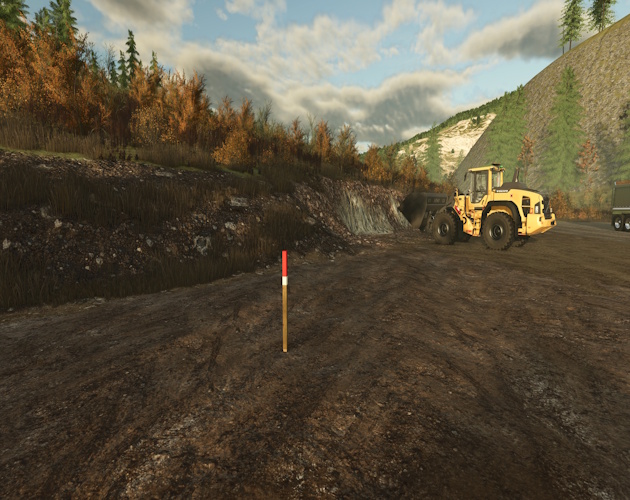
1. On foot, walk around the intended boundary in perimeter order. Press
Right Shift + K at each corner to place a stake. Use at least three stakes.
Right Shift + Backspace removes the last unpaid stake.
2. Press Right Shift + Enter to close the boundary and open Mine Survey.
Enter the mine name, choose different overburden and pay materials, then
choose an appearance for each. Check the texture previews before ordering.
3. Review the marked area, price and estimated survey time. Pay & start
commissions the survey. Cancel keeps the unpaid stakes for editing.
Survey price is 250 plus 5 per square metre, in your save's currency.
Survey duration is 2 plus area/400 active play minutes, rounded up.
A 1,600 m² mine therefore costs 8,250 and takes 6 active play minutes.
4. Wait for completion. Survey progress pauses with the game and is saved
during normal saving; it does not advance while offline. Completion uses
the base-game notification system, or Derwen Mobile Phone if available.
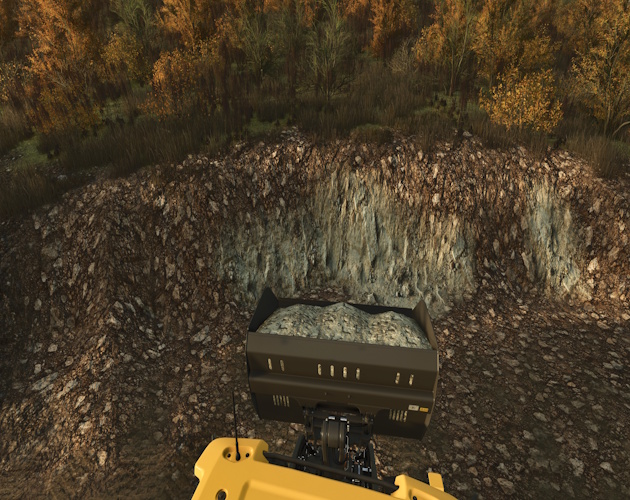
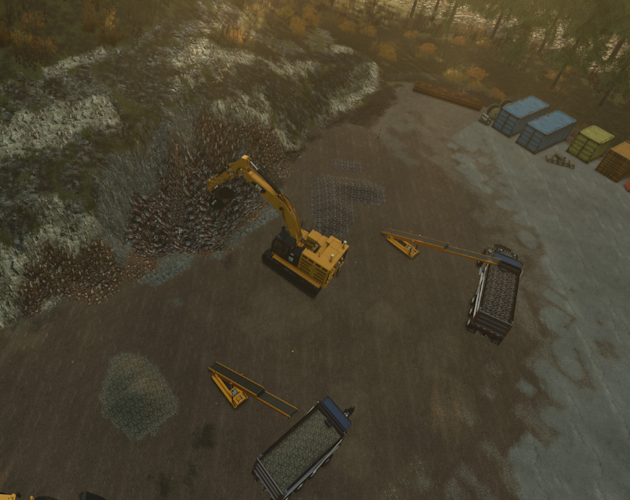
5. Enter the ready mine with your farm's compatible TerraFarm equipment.
The working point automatically selects the mine as its digging area.
Activate TerraFarm and use its normal mode controls.
WORKING THE MINE
Lower digs toward the mine floor. Grade levels toward the terrain height under
the vehicle, or the root vehicle for an attached implement. Grade follows that
ground reference as you move; it does not lock a permanent bench height.
Above the surveyed pay boundary, cuts yield the chosen overburden. At or below
it, cuts yield the chosen pay material. Different places can be at different
depths, so moving between shallow and deep patches can switch the material.
Empty the bucket before changing material. A bucket containing stone cannot
receive a new iron cut until it is emptied.
With TerraFarm input ground texturing enabled, newly excavated surface patches
use the selected appearances. Existing dug ground is not repainted just by
loading the save. Narrow or mixed-depth patches can remain unchanged.
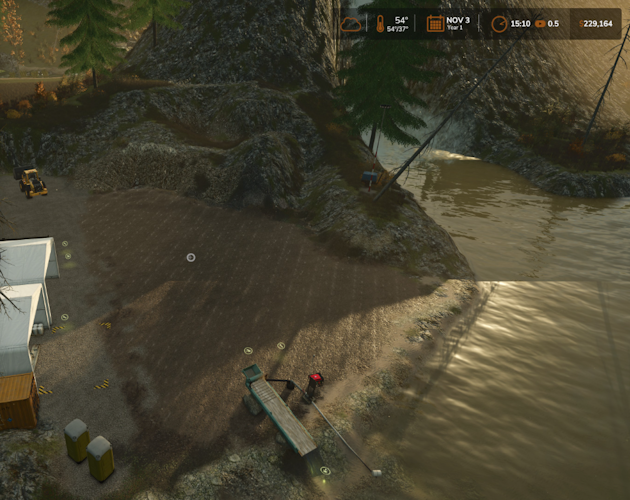
The depth display appears only inside the mine. Mine outlines appear on the
minimap while inside or within 50 metres of a mine edge. Depth follows the
original local terrain, including hillsides. Save normally to keep your stakes,
mine settings, survey progress and original terrain reference.
For discharge Grade, select the mine separately as the TerraFarm discharge
area. Filling uses your tool's actual material and available amount.
CLOSE A FINISHED MINE AND REUSE THE LAND
When you are done mining, get out of the vehicle and stand inside that completed
mine. With no unpaid stakes in progress, press Right Shift + Enter. The help
panel shows Close mine. Check the mine name and confirm Close Mine, or Cancel.
Closing permanently removes the mine record, stakes, minimap outline and
TerraFarm polygon, freeing its landscaping area slot. TerraFarm is turned off
on equipment assigned to that mine, and those mine assignments are cleared.
Other mines and existing bucket contents stay intact. The survey fee is not refunded.
The excavated terrain stays as dug. Use the normal landscaping tools to smooth,
reshape or reclaim the site for other uses. If you use TerraFarm equipment for
that work, reactivate it and choose its normal settings. Save the game after
closing the mine. Mining the same location as an Overburden mine again requires
placing a new boundary and commissioning a new survey.
DEFAULT CONTROLS
Right Shift + K — place mine stake
Right Shift + Enter — finish boundary / open survey; inside a completed mine,
with no unpaid stakes, open Close Mine
Right Shift + Backspace — undo the last unpaid stake
Saved or custom controls take precedence. Look for Place mine stake,
Finish boundary / close mine and Undo last mine stake in the game's controls settings.
CURRENT LIMITS
- Single-player only. Mine boundaries need 3–32 stakes, edges at least 2 m,
and an area of at least 36 m². Crossed or overlapping boundaries are rejected.
- TerraFarm's 63 landscaping areas are shared with other paths and polygons.
- One material is selected per cut; a cut through the seam is not split into
two yields. Native brush edges can extend beyond the boundary.
- Very large uneven mines use wider reference sampling. Long minimap edges
and narrow or mixed-depth paint patches still need further refinement.
- Completed mines currently have no in-game material/appearance editor or
survey-refund option. Close Mine permanently removes a completed mine.
- Other add-ons replacing TerraFarm material or mining-layer behavior may conflict.
FEEDBACK AND UPDATES
Please report problems in the comments on this page. Include your Overburden,
FS25 and TerraFarm versions; map; equipment; selected materials and appearances;
what you did; and what happened. Screenshots and log.txt from the same session
help me reproduce problems. Let me know whether it repeats after save/reload.
Successful tests are useful too. Tell me which maps, equipment and materials
worked for you. Reports will help guide fixes and future versioned updates.
Overburden by SecondChanceGaming.
Thanks to scfmod for TerraFarm, RGC for their maps, and the filltype creators
linked above. All linked projects remain the work of their respective creators.
Download
Click download now to get access to the following files:
Comments
Log in with itch.io to leave a comment.
SEEMS TO BE WORKING OK.THERES ONLY 2 MATERIALS ATM FOR THIS CORRECT? THE TOP LAYER AND THE PAY UNDER OR WHATEVER YOU CHOOSE..CORRECT?
Yes that was the intention mainly for Gold mining where you remove the overburden to expose the paydirt. You can also use it for coal, iron, limestone, etc. I am hoping for feedback from the community for future updates and also for testing.
this is pretty neat 🫡
Thank you Sir